
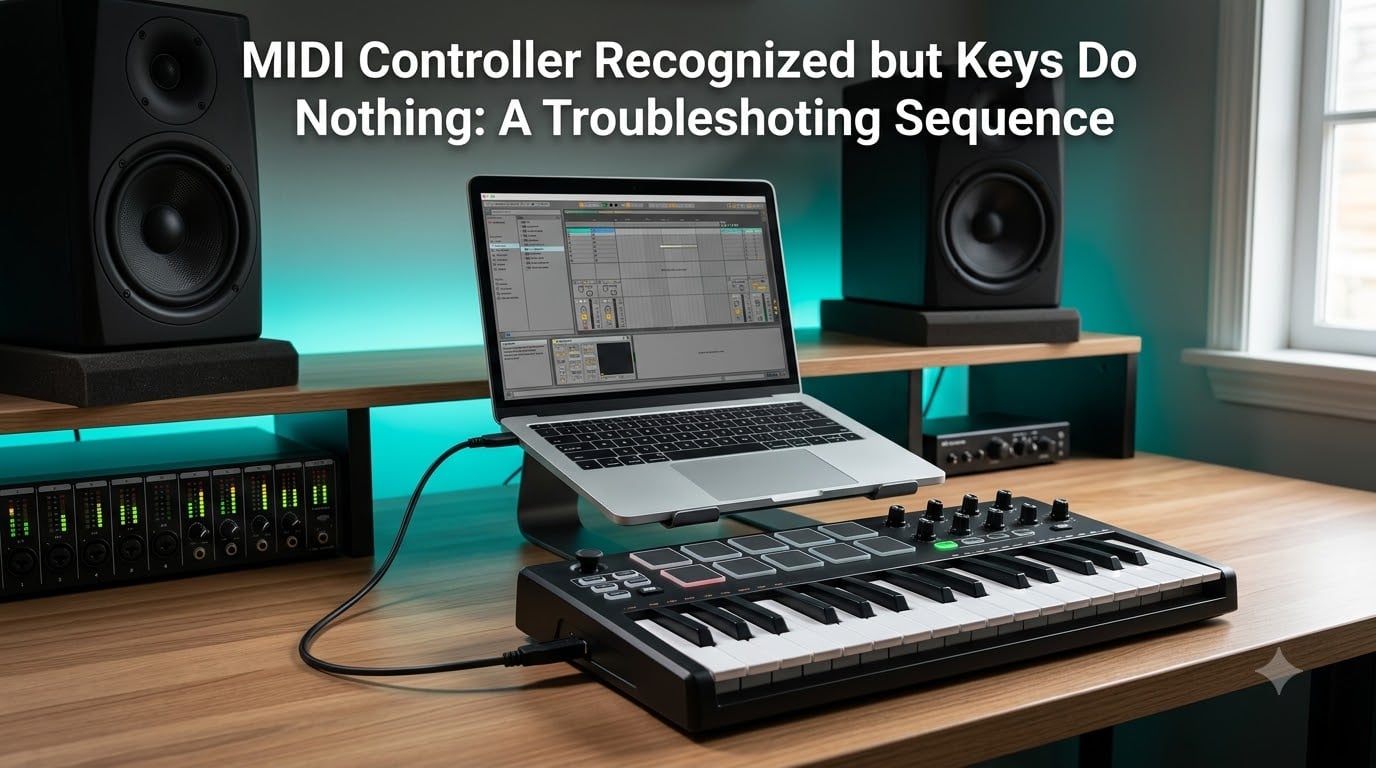
You plug in your MIDI keyboard, the lights come on, your computer chimes to confirm a new device, and then… nothing. The keys feel great under your fingers, but not a single note triggers in your DAW. If you are dealing with a MIDI controller recognized but keys do nothing situation, you are in good company. This is one of the most common and frustrating issues producers face, and in almost every case the fix is simpler than you think.
I have hit this exact wall more times than I care to admit. Over the years, our team has narrowed the causes down to a handful of recurring culprits. The good news is that almost all of them are fixable in under ten minutes once you know where to look.
This guide walks you through a complete troubleshooting sequence, from the simplest physical checks through to advanced DAW configuration. Follow the steps in order, because the most common fixes come first.
Table of Contents
Why Recognition Does Not Equal Functionality?
A USB MIDI cable carries two things: power and data. Your controller can receive power and light up beautifully while sending zero MIDI data to your computer. That gap between “powered on” and “actually communicating” is where most of these problems live.
Most modern MIDI keyboards are class-compliant, meaning they use standard USB drivers built into Windows and macOS, so they do not need proprietary software to be recognized. Recognition by the operating system is only the first half of the chain. The MIDI signal still has to travel from the OS into your DAW, and then your DAW has to be configured to listen for it.
Think of it like a postal delivery. The mail truck (USB) arrived at the sorting facility (your OS), but the letter (MIDI data) still needs the correct address (DAW input settings) and someone to open the mailbox (input enabled). Skip any link and the message goes nowhere.
Quick Diagnostic Checklist
Before going deep, run through this checklist. These seven items catch roughly 80 percent of cases we see:
Power LED is on but keys produce no sound — points to data or settings, not power.
Try a different USB cable — many “charge only” cables carry power but no data.
Plug directly into the computer, not a USB hub.
Restart the DAW after plugging in the controller.
Check if the device shows in your OS MIDI utility (Audio MIDI Setup on macOS, or MIDI settings on Windows).
Verify MIDI input is enabled in your DAW for that specific device.
If your controller has two ports, enable both in the DAW MIDI settings.
If none of these resolve the issue, move on to the step-by-step sequence below.
Step 1: Verify the Physical Connection
Start at the cable, because it is the cheapest and most common culprit. I once spent an hour debugging a controller only to discover the USB cable was a power-only lead from an old phone charger.
Swap in a known data-capable USB cable, preferably the one that shipped with the controller. Try a different USB port on the computer itself, ideally a rear port on a desktop tower rather than a front panel or hub. USB hubs, especially unpowered ones, can drop the data line even when power is fine.
If your controller has its own power supply, use it. Some keyboards draw more current than a single USB port can deliver, and the data link drops out as a result. Check that the connection at the back of the keyboard is seated firmly. Forum users have reported that simply reseating or even lightly tapping a loose USB jack on the controller restored full functionality.
Still nothing after a cable and port swap? The hardware is likely fine, and the issue is upstream in the OS or software.
Step 2: Confirm the OS Sees MIDI Data
Just because Windows or macOS detects a device was plugged in does not mean MIDI data is flowing. You need to verify the OS is actually receiving note messages from key presses.
On macOS
Open Audio MIDI Setup (found in Applications > Utilities). Click Window > Show MIDI Studio. Your controller should appear as an icon in the studio grid. If it is greyed out or missing, the OS is not receiving a stable MIDI connection. Double-click the device to check its properties, and confirm it is active rather than inactive.
On Windows
Open Device Manager and look under “Sound, video and game controllers.” Your MIDI keyboard should be listed without a warning triangle. If you see an error icon, right-click and uninstall the device, then unplug and replug to let Windows reinstall the class-compliant driver.
The MIDI Monitor Test
This is the single most useful diagnostic step, and most guides skip it. Download a free MIDI monitor tool — MIDI-OX on Windows or MIDI Monitor on macOS. Select your controller as the input source and press keys.
If you see note data appear in the monitor, your hardware and OS connection are perfect, and the problem is purely in your DAW settings. If nothing appears, you have a hardware, cable, or driver issue, and no amount of DAW tweaking will help.
Step 3: Check DAW MIDI Settings
Here is where most “recognized but keys do nothing” cases get resolved. Your DAW needs to know which device to listen to, and that input has to be enabled.
The general pattern is the same across DAWs: open Preferences or Settings, find the MIDI section, locate your controller in the input list, and tick the box to enable it. Many DAWs auto-detect controllers on launch but do not enable input by default, which catches people off guard.
The Multi-Port Trap
This deserves its own callout because it trips up so many producers. Some MIDI controllers, particularly larger 49- and 61-key models, present two MIDI ports to the OS. By default, your DAW may enable only one of them, and your key data might be arriving on the other port.
The fix: in your DAW MIDI settings, find the list of input ports for your controller and enable both. This single checkbox has solved the mystery for countless FL Studio users, and it applies to Ableton, Cubase, and other DAWs as well.
MIDI Channel Mismatch
Most controllers transmit on MIDI channel 1 by default, and most virtual instruments listen on channel 1 or “omni.” If your controller was switched to a different channel (sometimes via a key combination), notes will not trigger. Check the controller manual for how to reset the transmit channel.
DAW-Specific Configuration
Here are the exact steps for the most popular DAWs our team works with.
Logic Pro
Logic auto-detects class-compliant MIDI controllers. Open Logic Pro > Settings > MIDI > Input and confirm your device is listed. If the device was greyed out in Audio MIDI Setup, fix it there first, since Logic inherits the OS-level MIDI configuration. Also check Settings > MIDI > Controllers to ensure the controller is not in a disabled state.
FL Studio
Go to Options > MIDI Settings. Select your controller in the input list on the left. Critically, look at the port number assigned and make sure both ports are enabled if your controller shows two. This is the single most common FL Studio MIDI fix on the Image-Line forums.
Ableton Live
Open Preferences > Link Tempo MIDI. Under the MIDI Ports section, find your controller and turn on Track and Remote for the input. Ableton lists each port separately, so enable both if your controller exposes two.
Cubase
Open Studio > Studio Setup. Click the plus button and add a MIDI port. Select your controller for the input. Then in the track inspector, set the MIDI input of your instrument track to the correct port.
GarageBand and BandLab
Both of these are largely automatic with class-compliant devices. If keys are silent, quit the app, unplug the controller, plug it back in, and relaunch. BandLab in particular can fail to pick up a controller that was connected after the session started.
Step 4: Driver and Firmware Considerations
Class-compliant devices should work without extra drivers, but some manufacturers offer optional drivers that add advanced features. If you installed a vendor driver in the past and it became corrupted, it can actually break functionality that the built-in driver would have handled fine.
On Windows, try uninstalling any manufacturer driver from Programs and Features, then unplugging and replugging the controller so Windows falls back to its class-compliant driver. On macOS, driver conflicts are rarer but can occur with older vendor software — remove it from Library/Audio/MIDI Drivers.
Firmware updates are worth checking if the controller worked for months and suddenly stopped. Visit the manufacturer support page, download the firmware updater for your model, and follow the instructions. Always use a wired connection during a firmware update, never Bluetooth or a hub.
Step 5: Factory Reset and Power Cycle
If nothing else has worked, a factory reset on the controller itself can clear stray settings that disable MIDI output. The reset procedure varies by brand, so check your manual, but common methods include holding specific keys while powering on, or a combination of octave-shift buttons held for several seconds.
A full power cycle also helps. Unplug the controller, shut down your computer, wait 30 seconds, restart, and plug the controller into a different USB port before launching your DAW. This clears any stale USB enumeration state that can confuse both the OS and the DAW.
When to Seek Repair or Replacement?
If MIDI monitor shows zero data even after trying multiple cables, ports, and computers, and a factory reset does not help, the keyboard likely has a hardware fault. The most common failures are a damaged USB jack on the controller, a failed main board, or broken key-scan electronics.
At that point, contact the manufacturer support team. If the controller is under warranty, they will typically repair or replace it. If it is out of warranty, weigh the repair cost against simply replacing it with a new model.
Frequently Asked Questions
How to check if a MIDI controller is working?
Download a free MIDI monitor tool such as MIDI-OX on Windows or MIDI Monitor on macOS. Select your controller as the input, then press keys. If note data appears, the hardware and connection are fine and the issue is in your DAW settings. If nothing appears, you have a cable, driver, or hardware problem.
Why did my MIDI keyboard stop working?
The most common causes are a faulty USB cable, the DAW losing its MIDI input assignment after an update, USB power management turning off the port, or a firmware glitch. Try a different cable, replug into a different port, restart the DAW, and verify MIDI input is still enabled in preferences.
How to factory reset MIDI keyboard?
The procedure varies by brand, but common methods include holding the octave-shift buttons while powering on, or holding specific keys during boot. Check your controller manual for the exact sequence. Always use a direct USB connection and avoid hubs during a reset.
Why isn’t my MIDI keyboard working in Logic Pro?
Open Audio MIDI Setup and confirm the device is not greyed out in the MIDI Studio window. If it is greyed out, fix it at the OS level first. Then in Logic Pro go to Settings u0026gt; MIDI and confirm the controller is listed and enabled. Logic inherits MIDI configuration from macOS, so OS-level issues block Logic.
What are common problems with MIDI keyboards?
The most frequent issues are charge-only USB cables that carry power but no data, unpowered USB hubs dropping the data link, only one of two MIDI ports enabled in the DAW, MIDI input not toggled on in DAW preferences, and outdated or corrupted vendor drivers overriding the class-compliant driver.
Why is my MIDI not working in FL Studio?
Go to Options u0026gt; MIDI Settings, select your controller, and make sure both MIDI ports are enabled if your controller shows two. FL Studio often enables only one port by default, and your key data may arrive on the disabled port. This is the single most common FL Studio MIDI fix.
Conclusion
A MIDI controller recognized but keys do nothing is almost always a settings or cable issue rather than a dead keyboard. Work the sequence: swap the cable, plug in direct, verify MIDI data with a monitor tool, then enable the correct input and both ports in your DAW.
The MIDI monitor test is the single most powerful step in this guide, because it instantly tells you whether to blame hardware or software. Run it before you spend an hour in DAW preferences.
If you have worked through every step and still see no MIDI data, the controller likely needs professional repair. But in our experience, nine out of ten cases are solved before you reach Step 4.