
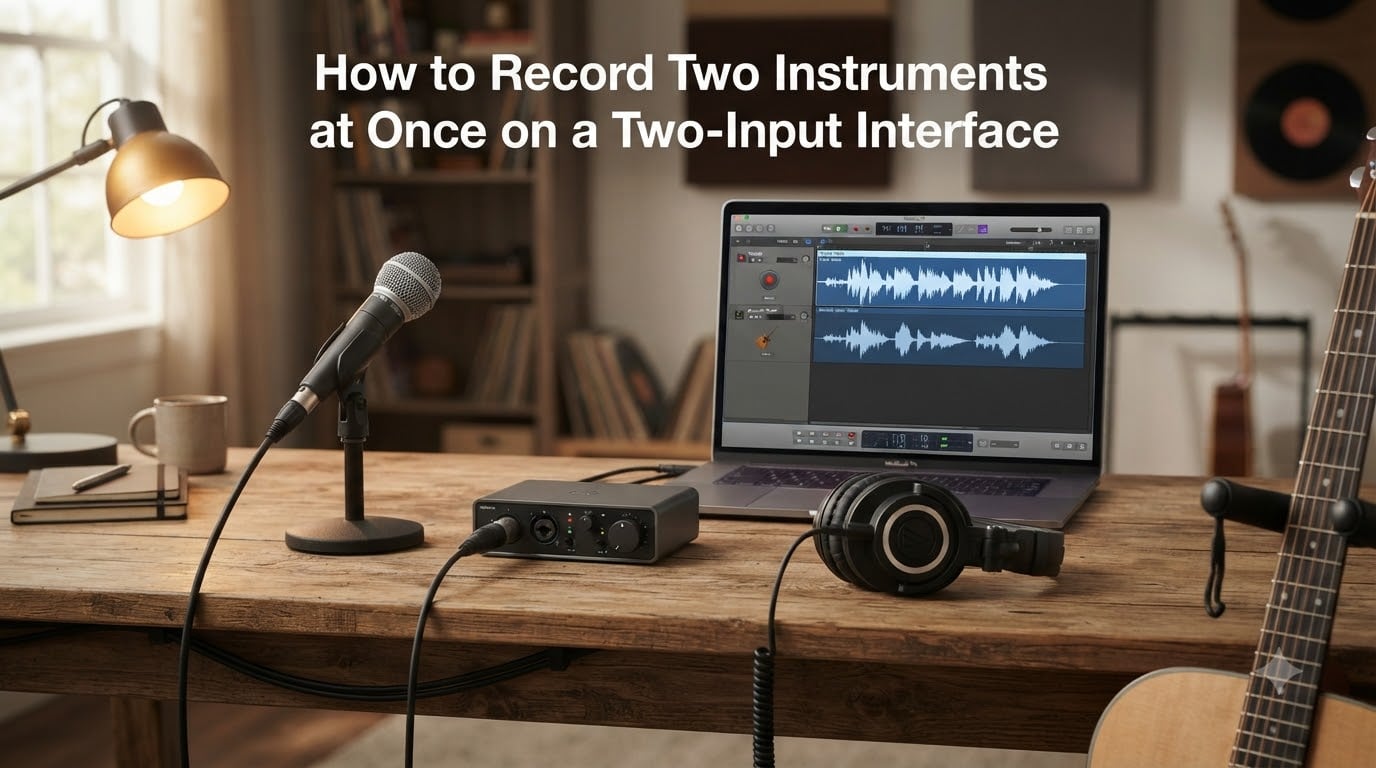
I remember the first time I tried to capture my guitar and vocals together on a budget interface. I hit record, played the song, and panicked when only one of them showed up in my DAW. The audio was actually there — it was just stuck on one track. That moment taught me the single most useful thing about recording two instruments at once on a two-input interface: each physical input is its own recording lane, and you have to tell your software to use them.
If you have a two-input interface like the Scarlett Solo, Volt 2, M-Track Solo, or any similar compact unit, you can absolutely record two instruments simultaneously. You just need to understand how your inputs map to tracks, how mono versus stereo channels behave, and where direct monitoring fits into the picture. This guide walks through every step I wish I had on day one, including a mixer workaround for when two inputs simply are not enough.
By the end, you will know how to record two instruments at once on a two-input interface using two distinct methods, how to configure your DAW correctly, and how to fix the most common frustrations that home recorders hit on their first attempts.
Table of Contents
What Is a Two-Input Audio Interface and Why Record Two Instruments Simultaneously
A two-input audio interface is a small hardware box that converts the analog signal from microphones and instruments into digital audio your computer can record. Most entry-level units offer two physical inputs: an XLR jack for a microphone and a 1/4 inch (TRS or TS) jack for an instrument like a guitar or keyboard. Some offer two combo jacks that accept both.
The “two-input” part means the hardware has two analog-to-digital converters and two channels. That is the limit of how many separate signals you can capture at one time. It is not a software restriction — your DAW can handle dozens of tracks — it is a hardware one.
Recording two instruments simultaneously is a different workflow from overdubbing. Overdubbing means recording one instrument, then playing it back while you record the second instrument over it. Simultaneous recording means both instruments hit the converters at the same moment and end up on two separate tracks. There are three reasons home musicians prefer the simultaneous approach:
- It captures the natural feel of a live performance, including timing and dynamics that you cannot recreate later.
- It saves hours of editing because you are not aligning takes against a click track.
- It lets a singer-songwriter perform instead of engineering, which usually produces a better take.
The catch is that with only two inputs you must choose carefully which two sources you capture. For most solo musicians that is vocals plus guitar, or a piano plus a room microphone, and those pairings work beautifully on a two-input interface.
Method 1: Recording Two Instruments to Separate Tracks Simultaneously
Method 1 is the cleanest path and the one I recommend starting with. It uses only your interface and your DAW, with no extra gear. Here is the step-by-step process I follow every time I record a vocal-plus-guitar song at home.
Step 1 — Connect your two sources. Plug your microphone XLR cable into Input 1 on your interface, and plug your guitar (or other instrument) cable into Input 2. If your interface has combo jacks, either input will accept both XLR and 1/4 inch cables.
Step 2 — Set gain for each input. Turn the gain knob on Input 1 until your loudest vocal phrase sits around -12 dB on the meter. Repeat for Input 2 with your loudest strum or chord. Engaging phantom power (+48V) is required only if you are using a condenser microphone — leave it off for dynamic mics and guitars to avoid damage.
Step 3 — Arm two tracks in your DAW. Create Track 1 and set its input to “Input 1” or “Mono Input 1.” Create Track 2 and set its input to “Input 2” or “Mono Input 2.” Arm both tracks for recording (the red record-enable button on each track).
Step 4 — Choose your monitor source. Decide whether you want to hear playback from your DAW (full plugin processing, but with latency) or use direct monitoring (zero latency, but dry signal). More on that in a moment.
Step 5 — Hit record and perform. Press the master record button. Both armed tracks will capture their assigned inputs in real time. When you stop, you will have two mono files, each containing only one instrument, ready to mix independently.
That is the entire workflow. It takes about five minutes once you have done it a few times, and it works on every modern DAW including GarageBand, Reaper, Logic, Ableton, FL Studio, Bitwig, and Pro Tools.
Understanding Mono vs Stereo Inputs on Your Interface
Every input on a two-input interface is a mono channel by default. Mono means a single audio stream with no left-right separation. This is fine for vocals, a single microphone on an amplifier, or a guitar plugged in directly.
Stereo recording needs two channels — one for the left side, one for the right. A piano with two built-in speakers, a keyboard with stereo output, or a stereo drum overhead pair all need two channels to sound correct.
This matters because if you plug a stereo keyboard into a single mono input, you will lose the right channel entirely. The audio you hear back will be incomplete and, as one Reddit user described it, will sound “bad in mono mode” compared to the original stereo sound. The fix is straightforward: use a stereo cable (TRS to dual TS, or two mono cables) into both Input 1 and Input 2, then record those two inputs as a stereo track in your DAW.
When you do this, you now have zero remaining inputs for anything else. That is the fundamental trade-off of stereo recording on a two-input interface, and it is the most common reason people graduate to four-input or eight-input units.
DAW Setup: Configuring Inputs for Multitrack Recording
The single biggest mistake I see beginners make is leaving their DAW on the default stereo input. When that is set, both of your interface inputs get summed together into one stereo track, and you end up with both instruments on the same recording. Here is how to set up every major DAW correctly for true multitrack recording.
In Reaper: Right-click the track record-arm button, choose “Input: Mono” and pick Input 1 for Track 1, Input 2 for Track 2. Right-click again and disable “Record input monitoring” if you want to use direct monitoring instead.
In GarageBand: Click the input arrow on each track header and select Input 1 (mono) or Input 2 (mono) instead of the default stereo input. GarageBand labels these as “Input 1” and “Input 2” with a small mono icon.
In Logic Pro: Open the mixer, click the input slot on each track, and pick Input 1 > Mono and Input 2 > Mono. Confirm the I/O Assignments label shows “1” and “2” rather than “Stereo.”
In Ableton Live: Set the “Audio From” dropdown on Track 1 to “Ext. In” with channel 1/2, and on Track 2 to channel 2/2. The “2/2” is what selects the right channel only — without this you would record stereo on both tracks and capture the same signal twice.
In FL Studio: Open the Mixer, route Track 1 to Insert 1 (mono), Track 2 to Insert 2 (mono). Right-click each insert and set the input source to “In 1 – Left” for Insert 1 and “In 2 – Right” for Insert 2.
Whichever DAW you use, the principle is identical: each track gets one specific mono input. If your meters show activity on both tracks when you play both instruments, you have configured it correctly.
Direct Monitoring: How to Reduce Latency When Recording Two Instruments
Latency is the small delay between playing a note and hearing it back through your headphones. It is caused by the time your interface takes to convert the signal to digital, send it to your computer, run it through your DAW, and send it back out again. On a fast modern interface at a 128-sample buffer, this delay is around 5 to 8 milliseconds — short enough to ignore. On a slower computer or larger buffer, it can jump to 20 or 30 milliseconds, which makes singing and playing together feel like wading through mud.
Direct monitoring solves this by routing your inputs straight to your headphones, bypassing the computer entirely. Most two-input interfaces have a “Direct” or “Monitor” knob on the front panel that blends your input signal with playback from the computer.
To use it, turn the direct monitoring knob to the “Input” or “Direct” position. You will hear your live instruments in your headphones with zero delay, but you will not hear any software effects, EQ, or reverb because those run on the computer, not on the interface. The trade-off is usually worth it during the performance. You can always switch back to software monitoring during mixing.
If your interface does not have a direct monitoring knob (the Scarlett Solo does not, but the Volt 2 does), you can still reduce latency by lowering your buffer size to 64 or 128 samples and freezing any heavy plugins on existing tracks so your CPU has room to breathe.
Method 2: Using a Mixer to Combine Instruments Before Recording
Method 2 is the workaround I personally used for two years with my Volt 2. It solves the most common frustration with a two-input interface: you have more than two instruments to record, but only two inputs to plug them into.
The trick is to add a small mixer between your instruments and your interface. Every instrument plugs into a channel on the mixer, the mixer sums them together, and a single stereo output from the mixer plugs into the two inputs on your interface. Many home recorders on Reddit and Gearspace describe this exact setup with 4-channel or 8-channel mixers like the Yamaha MG10XU, Mackie ProFX, or Allen & Heath ZED.
The trade-off is significant: once multiple instruments hit the mixer, they are summed into a single stereo signal before reaching your DAW. You can no longer edit, EQ, compress, or balance the instruments independently because they are already mixed together. This method is genuinely useful only when you are doing a rough demo, capturing a live performance, or recording a “scratch take” that you will later replace instrument by instrument.
If you want true multitrack flexibility, Method 1 is what you want. If you just need a quick performance capture with three or four sources and do not care about post-production control, the mixer approach works fine. I keep a small 4-channel mixer on my desk for exactly this purpose.
Common Issues and Troubleshooting Tips
After walking dozens of first-time recorders through this setup, I have noticed the same handful of problems pop up over and over. Here is the troubleshooting checklist I run through when something is not working.
Problem: Only one track is recording. The most common cause is that both tracks are set to the same input source. Check that Track 1 reads “Input 1” and Track 2 reads “Input 2,” not both “Stereo Input” or both “Input 1.”
Problem: My piano sounds thin and hollow. You are recording a stereo instrument in mono. Either switch to a stereo input configuration (using both interface inputs) or accept the mono result for rough demos only.
Problem: There is an audible delay in my headphones. Either turn on direct monitoring on your interface, or drop your buffer size to 128 samples or lower. Disable any plugins you are not actively using on the input tracks.
Problem: One channel is much louder than the other. Adjust the gain on the interface input that is louder, or move the closer microphone further from the source. Mismatched gains are also a common cause of clipping on the louder channel.
Problem: I hear a high-pitched whine or buzz. Ground loop. Make sure all gear is plugged into the same power outlet strip, or use balanced cables (XLR or TRS) throughout your signal chain.
Problem: Can I use two audio interfaces at once? Yes, technically, but it is rarely worth the trouble. You would need an aggregate device driver (Mac) or ASIO4ALL (Windows), and most DAWs add measurable latency when bridging two interfaces. A single larger interface is almost always the better solution.
When You Might Need More Than Two Inputs
Two inputs cover vocals-plus-guitar perfectly. They also handle piano-with-room-mic, acoustic-guitar-with-vocal, and a stereo keyboard recording with no room for anything else. The moment you want drums, full bands, or a multi-mic setup, two inputs stop being enough.
Other signals that push you past two inputs: a click track sent to a performer’s headphones plus a microphone, an amp mic plus a room mic plus a guitar direct signal, or any time you want both a stereo piano and a vocal at the same time. If you find yourself constantly wishing for a third input, a 4-input interface like the Scarlett 4i4, MOTU M2, or Audient iD4 Mk II is the natural upgrade.
Real-World Recording Scenarios: Vocals and Guitar, Piano and Mic
Let me walk through two scenarios that come up constantly in home recording forums.
Scenario 1: Vocals and acoustic guitar. Plug a condenser mic into Input 1 with phantom power on, point it at the 12th fret of your guitar (about 6 to 8 inches away). Plug the guitar itself into Input 2 with a 1/4 inch instrument cable. Record both tracks mono. You now have independent control over vocal compression and guitar EQ in the mix.
Scenario 2: Stereo piano and vocal. Use both interface inputs as a stereo pair for the piano (Left to Input 1, Right to Input 2). If you also want to capture a vocal at the same time, you cannot — the piano is already using both channels. The workaround is to record the piano alone, then overdub the vocal while monitoring the piano playback through your headphones.
These two scenarios cover around 80 percent of the use cases I see from home recorders with two-input interfaces. Once you have done each one a few times, every other two-source recording feels obvious.
Frequently Asked Questions
Can you record with two interfaces at the same time?
Yes, you can record with two audio interfaces at the same time, but it requires extra setup. On macOS you create an Aggregate Device in Audio MIDI Setup that combines both interfaces into one. On Windows you use ASIO4ALL to bridge them. Expect slightly higher latency than a single interface and occasional driver conflicts.
Can you use two Focusrite interfaces at once?
Yes, two Focusrite interfaces can be used together through an aggregate device on macOS or ASIO4ALL on Windows. In practice, most home recorders find it simpler and more stable to sell the smaller interface and buy a single 4-input or 8-input Focusrite instead.
How do you record two mics at once?
Plug microphone one into Input 1 and microphone two into Input 2 on your interface, set individual gain levels, then arm two separate mono tracks in your DAW with each track assigned to its own input. Hit record and both microphones capture simultaneously to independent tracks.
Why might a piano sound bad in mono on a two-input interface?
Pianos, especially acoustic and high-end digital pianos, are designed to sound in stereo because the left and right sides of the keyboard produce different timbres and resonances. Recording them in mono collapses both sides into one channel, which loses the spatial width and can make the piano sound thin, hollow, or muddy.
How many instruments can I record simultaneously with a two-input interface?
Two mono instruments, or one stereo instrument, is the maximum. If you need more than two sources at once, either use a mixer to combine them before the interface (sacrificing independent track editing) or upgrade to a four-input or larger interface.
Do I need direct monitoring when recording two instruments?
Direct monitoring is not strictly required, but it makes a noticeable difference when you sing or play along to a click. It eliminates the small delay caused by routing through your computer, so what you hear in your headphones matches what you play in real time. Enable it whenever your interface supports it.
Final Thoughts
Recording two instruments at once on a two-input interface is one of those skills that looks intimidating for about fifteen minutes and then becomes second nature for the rest of your recording life. The core idea is simple: plug each source into its own input, arm a separate mono track for each input in your DAW, hit record, and play.
Start with the easiest pairing — vocals and guitar — and practice until the workflow feels automatic. Once you have Method 1 down, experiment with stereo piano recording, dual microphone setups, or the mixer workaround if you regularly need more sources than two inputs allow. Within a few sessions you will wonder why it ever felt complicated.
At 2026, home recording on a two-input interface is a genuinely capable workflow. You do not need a studio, a mixer, or a giant interface to capture great-sounding performances. You just need to understand what each input does and how to point it at the right track.