
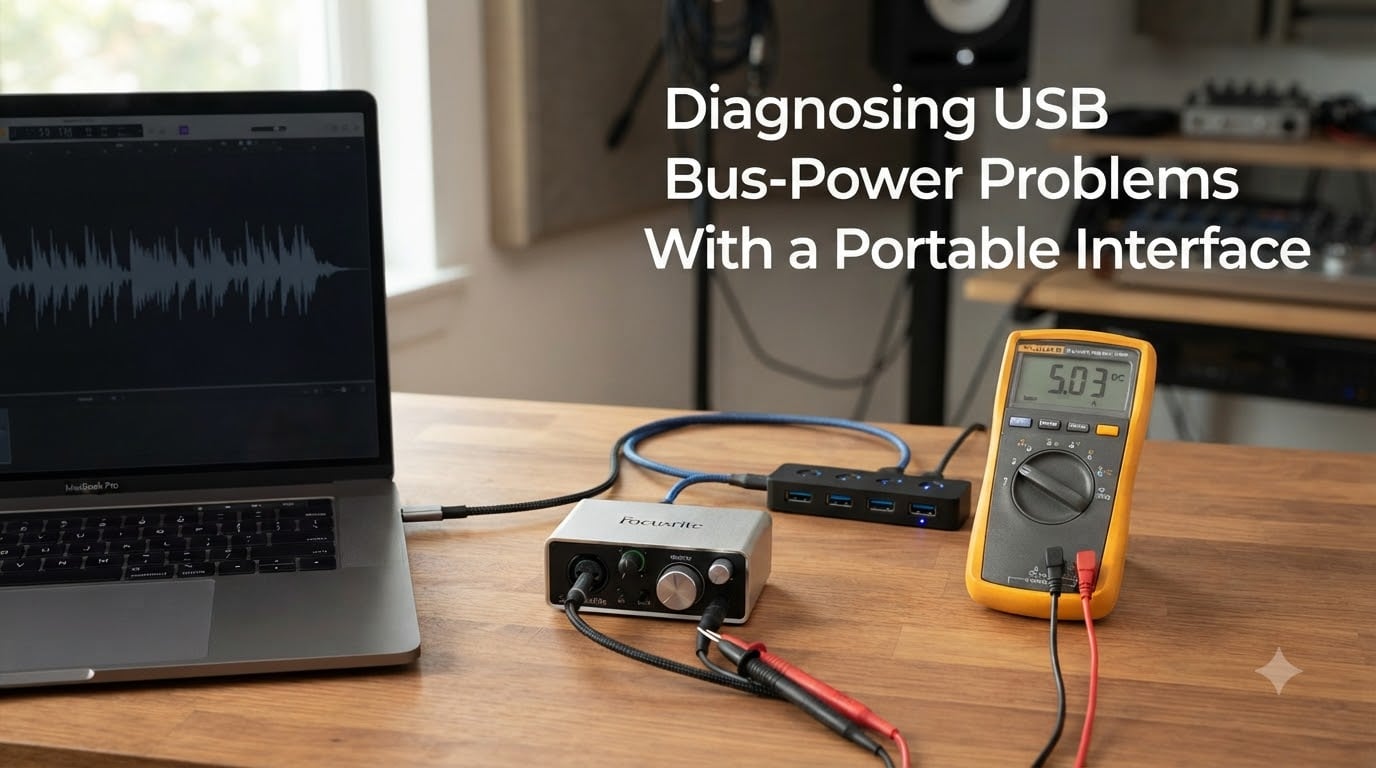
Bus power is the reason your portable interface works the moment you plug it in, and it is also the reason it sometimes clicks, drops out, or refuses to power on at all. When a single USB cable carries both data and electricity, any weakness in the cable, the port, or the host computer’s USB controller shows up as audio glitches, random disconnects, or a Windows power-surge warning. Understanding how that power flows, and where it breaks down, is the fastest way to get a unreliable interface running cleanly again.
This guide walks through diagnosing USB bus-power problems with a portable interface, from the first quick cable swap to advanced Device Manager and voltage-level checks. It is written for musicians, podcasters, and engineers working on Windows laptops and desktops, where most bus-power complaints originate. Every step comes from real user reports on r/audioengineering, Gearspace, and manufacturer support threads, refined into a repeatable workflow you can follow in under an hour.
By the end you will know how to confirm whether the issue is the cable, the port, the interface, or Windows itself, and you will have a ranked list of fixes to try before spending money on a powered hub or an external supply. Skip ahead to the diagnostic steps if your interface is down right now, or read the theory first if you want to understand why bus power fails.
Table of Contents
What Is USB Bus Power and How It Works?
USB bus power means a device draws its electrical current directly from the host computer’s USB port, through the same cable that carries audio data, instead of needing a wall adapter. The host’s USB controller negotiates a voltage and current budget with the device when it connects, then supplies steady 5V (or higher for USB-C Power Delivery) for as long as the device stays attached.
That negotiation is where most problems start. A standard USB 2.0 port is allowed to deliver only 500 mA, and USB 3.0 raises that to 900 mA. Many portable audio interfaces, especially two-channel units with phantom power, can draw 700 mA to 1 A in short bursts. If the port, cable, or controller cannot sustain that current, the interface resets, drops audio, or never powers on at all. The device is technically bus-powered, but it is starving.
Bus power is convenient, but it is a shared resource. Plug a bus-powered interface into the same internal USB root hub as a webcam, an external SSD, and a backlit keyboard, and the available current gets divided further. This is why a portable interface that works perfectly on a desktop can fail on a thin laptop with only two physical ports.
USB Power Specifications Explained: USB 2.0 vs 3.0 vs USB-C
Different USB generations deliver different amounts of power, and matching the port to the device’s draw is half the diagnosis. USB 2.0 caps out at 500 mA at 5V (2.5W), which is enough for a simple MIDI controller but rarely enough for a phantom-powered audio interface. USB 3.0 and 3.1 raise that to 900 mA at 5V (4.5W), which handles most small interfaces comfortably.
USB-C with Power Delivery changes the picture entirely. A PD-capable port can negotiate up to 20V at 5A (100W), and newer revisions push that higher. The catch is that both the host and the cable have to support the PD profile, and many USB-C ports on older laptops are data-only or capped at 1.5A. A USB-C connector does not guarantee high power delivery; it only guarantees the shape.
For portable interfaces, the practical rule is to prefer USB 3.0 or higher ports, use the cable that shipped in the box, and treat USB 2.0 as a last resort. If your interface disconnects when you plug in a second device on the same side of the laptop, you are almost certainly hitting a per-controller current limit rather than a broken port.
Common Symptoms of USB Bus Power Problems
Bus-power failures rarely announce themselves cleanly. They show up as a cluster of small, intermittent issues that look like driver bugs, sample-rate mismatches, or a faulty interface. Knowing the symptom pattern is what separates a 10-minute fix from a week of driver reinstalls.
The most common signs, roughly in order of severity, are:
Random disconnects during playback or recording, often mid-take, where the interface vanishes from the DAW’s device list and reappears seconds later.
Audio dropouts and clicks that get worse when phantom power is enabled or when buffer size is lowered, because current demand spikes.
Windows power-surge notifications reading “USB device drawing too much power” or “Power surge on the USB port,” which is the host actively protecting itself.
Interface fails to power on at all, with no LED, no recognition chime, and no entry in Device Manager.
Crackling, humming, or ground-loop noise that changes when you touch the laptop chassis or move the cable, pointing to a power or ground issue rather than a sample-rate one.
Interface works on a desktop but not a laptop, or works on AC power but disconnects on battery, confirming a current-budget problem rather than a hardware fault.
If two or more of these show up together, the cause is almost always upstream of the interface itself. The interface is the victim, not the culprit.
Warning Signs Before a USB Port Fails
Forum reports from r/audioengineering and Gearspace describe a recurring pattern where a laptop USB port stops working entirely after weeks of running a bus-powered interface. Catching the warning signs early can save the port, and in some cases the motherboard’s USB controller.
The clearest early indicators are: the port feels warm to the touch after an hour of use; the same cable only works when held at a specific angle; devices take noticeably longer to be recognized; and you hear a faint crackle through monitors whenever the interface reconnects. A wobbly USB-C or USB-B connector is a strong sign that the port’s solder joints are fatiguing, which is how one Reddit user ended up losing two laptop ports to a Focusrite 2i2 over six months.
If you see any of these signs, stop using that port for the interface immediately and move to a different port or a powered hub. Continuing to run a high-current device through a damaged port accelerates the failure and can short the controller.
How to Diagnose USB Bus-Power Problems With a Portable Interface?
This is the core workflow. Run the steps in order, and stop as soon as the interface behaves reliably. Most cases resolve within the first three steps.
Step 1: Isolate the cable. Swap the USB cable for a known-good one, ideally the short, thick cable that came with the interface or a quality USB 3.0 cable under 1 meter. Cables are the single most common cause of bus-power failures because thin conductors and worn connectors drop voltage under load. A cable that works fine for a USB stick can fail an interface drawing 900 mA.
Step 2: Try a direct port on a different controller. Plug the interface directly into a port on the opposite side of the laptop, or into a desktop’s rear-panel port. This bypasses both the suspect port and any internal hub sharing. If the interface works on the second port, the original port or its controller is the problem, not the interface.
Step 3: Disconnect every other USB device. Unplug external drives, webcams, MIDI controllers, and charging cables, then test the interface alone. If it works in isolation but fails with other devices attached, you have confirmed a shared-current problem on that USB root hub. The fix is a powered hub or moving devices to a different controller.
Step 4: Test with phantom power on and off. Toggle 48V phantom power while monitoring for dropouts. If problems appear only with phantom on, the interface’s current draw is exceeding what the port can sustain. This points to a powered hub or external supply rather than a faulty interface.
Step 5: Compare AC power vs battery. On a laptop, test the interface with the laptop plugged in and then on battery. Some laptops throttle USB power output on battery to extend runtime, which is why an interface works at the desk but drops out in the field.
Step 6: Check the interface on another computer. If the interface misbehaves on two different machines with two cables, the interface itself is likely faulty. If it works on the second machine, the problem is the original host’s USB subsystem.
Step 7: Inspect the connectors under light. Shine a light into both the cable connector and the port. Look for bent pins, blackened contacts, or a loose-feeling socket. Physical damage from shock, drops, or repeated stress is a common and permanent cause that no software fix will address.
Testing USB Power Output Directly
If the steps above point to a port problem but you want hard numbers, you can measure the actual voltage and current a port delivers. This separates a port that is genuinely underpowered from one that is electrically fine but software-throttled.
Method 1: USB voltage meter. A cheap USB voltmeter plugs between the port and the device and reads live voltage and current. Plug the interface through the meter during normal use. A healthy USB 2.0 port holds close to 5.0V; anything below 4.75V under load is out of spec and will cause dropouts. Watch the current reading when you enable phantom power to see the spike.
Method 2: Software monitoring. Tools like HWiNFO and the Windows USB Viewer (usbview.exe from the Windows Driver Kit) report per-port status and negotiated current. HWiNFO can log USB rail voltage over time, which is useful for catching brief dips that happen mid-take.
Method 3: Multimeter on a break-out cable. For a definitive reading, use a USB break-out adapter and measure the +5V and GND lines with a multimeter set to DC volts. This is overkill for most users but is the only way to confirm a port is delivering rated current when a meter disagrees with the device’s behavior.
Document what you find. A screenshot of the voltage reading under load is the single most useful evidence to include if you ever contact the interface manufacturer’s support.
Device Manager Troubleshooting for USB Power Issues
Windows has several power-management features that silently throttle or suspend USB ports, and these are responsible for a large share of “my interface keeps disconnecting” reports. Checking and disabling the right settings takes five minutes and fixes a surprising number of cases.
Step 1: Open Device Manager (right-click Start, select Device Manager) and expand the Universal Serial Bus controllers section. Look for any entry marked with a yellow triangle, which indicates a driver or power error on that specific root hub.
Step 2: Disable USB selective suspend. Open Power Options (Control Panel, Hardware and Sound, Power Options), click Change plan settings, then Change advanced power settings. Expand USB settings, then USB selective suspend setting, and set it to Disabled for both battery and plugged-in modes. This stops Windows from cutting power to the port to save energy, which is a frequent cause of mid-recording dropouts.
Step 3: Turn off power management on each root hub. In Device Manager, right-click each USB Root Hub entry, select Properties, go to the Power Management tab, and uncheck “Allow the computer to turn off this device to save power.” This prevents Windows from suspending the controller hosting your interface.
Step 4: Check the Power tab on each Root Hub. While still in the Root Hub properties, click the Power tab. It lists each device attached to that root hub and its reported power draw in milliamps. If your interface plus other devices exceed the port’s 500 mA or 900 mA budget, you have found the conflict.
Step 5: Reinstall the USB controller driver if a port still misbehaves. Right-click the top-level USB controller entry (often labeled “USB xHCI Compliant Host Controller”), select Uninstall device, reboot, and let Windows reinstall the driver. This clears corrupt driver state without touching your interface’s own driver.
Step 6: Clear the “Power surge on USB port” error if Windows has flagged one. Click the error notification, select Reset, then unplug and replug the interface. If the error returns immediately, the port is being asked for more current than it can supply and you need a powered hub.
Audio Interface Specific Power Problems
Audio interfaces are the most demanding common bus-powered devices, because they combine a high-speed data stream with phantom power, headphone amplifiers, and sometimes direct monitoring hardware. Generic USB troubleshooting gets you part of the way, but interface-specific issues need their own approach.
Phantom Power and Current Spikes
Phantom power (48V) draws significant extra current because it powers the microphone preamps. On a bus-powered interface, enabling phantom can push total draw past 900 mA for the brief moment the rail charges. Many ports handle steady draw fine but trip on that inrush spike. If your interface disconnects the instant you press the phantom button, the port is not defective; it is undersized. The fix is a powered hub or an interface with an optional external supply.
Dropouts That Track the Sample Rate
If dropouts disappear at 48 kHz but appear at 96 kHz, or vanish when you raise the buffer size, the issue is rarely pure power. It is more often a USB controller that cannot sustain the higher data rate under the same power budget. Lowering the sample rate or moving the interface to a USB 3.0 port on a separate controller usually resolves it without touching power settings.
Noise, Hum, and Ground Loops
Bus power ties the interface’s ground to the computer’s ground, which makes ground loops easy to create. Symptoms include a 50 or 60 Hz hum that changes when you touch the laptop case or move the cable, and crackle that appears when the laptop is charging but not on battery. A USB ground-loop isolator or moving the interface to a powered hub with its own supply breaks the ground path and often eliminates the noise completely. This is one of the most under-diagnosed causes of “noisy interface” complaints on forums.
Laptop Battery vs Plugged-In Behavior
Many laptops reduce USB port current when running on battery to extend runtime, and some drop the port voltage under sustained load. An interface that works perfectly at the desk but disconnects on battery is telling you the battery-power profile is throttling the USB controller. Adjusting the power plan or using a powered hub removes the dependency on the laptop’s power state.
Power Supply Solutions: Fixing USB Bus Power Issues
Once you have confirmed the problem is insufficient or unstable bus power, the fixes are straightforward and ranked by cost and effectiveness.
Use a powered USB hub. This is the single most recommended fix across every forum and support thread, and for good reason. A powered hub has its own wall adapter, so it supplies full current to every port regardless of what the host computer delivers. Plug the interface into the powered hub and the hub into the computer, and the interface sees clean, stable 5V at up to 900 mA per port. Look for a hub with a dedicated power brick rated for at least 2A total, and plug the interface into the hub’s first port for the best power priority.
Add an external power supply to the interface. Many bus-powered interfaces have a barrel-jack input for an optional 12V supply. Connecting it shifts the interface from bus power to mains power, removing the host computer from the power equation entirely. This is the cleanest fix if your interface supports it, and it usually eliminates phantom-power dropouts instantly.
Upgrade the USB cable. A short (under 1 meter), thick, shielded cable with proper USB 3.0 or higher construction has lower voltage drop and better shielding. Avoid extenders and adapters, which add resistance and points of failure. The cable that ships with budget interfaces is often the weakest link.
Move the interface to a dedicated controller. On a desktop, use a rear-panel port that sits on its own PCIe USB controller. On a laptop, add a USB-C or Thunderbolt dock with its own controller, or use a port on the opposite side of the machine that maps to a different root hub.
Update firmware and chipset drivers. Interface manufacturers and laptop makers regularly release firmware that fixes USB power negotiation bugs. Check the manufacturer’s site for your specific interface model and your laptop’s chipset driver, and install the latest versions before assuming the hardware is faulty.
Portable Interface Best Practices
A few habits prevent most bus-power problems before they start, and they cost nothing.
Always connect the interface directly to a port on a dedicated controller when possible, and reserve hub connections for low-power devices.
Use the shortest cable that reaches, and never daisy-chain extenders for an audio interface.
Disable USB selective suspend and root hub power management on any port hosting an audio interface.
Keep phantom power off until you are actively recording, and turn it off before unplugging a microphone.
When running on battery, close background apps that spike USB controller load, and consider switching the laptop to a balanced power profile rather than an aggressive saver mode.
Update the interface firmware after every major Windows update, because USB driver changes can break power negotiation.
Label the cable and port that work reliably, so you do not accidentally move the interface to a problem port during a session setup.
Frequently Asked Questions
How to diagnose USB port problems?
Start by swapping the cable, then move the device to a different port on a separate USB controller. Disconnect all other USB devices and test the interface alone. Open Device Manager and check for yellow warning triangles on the USB Root Hub entries, then disable USB selective suspend in Power Options. If the device works on a second computer, the original port or controller is at fault.
Does a USB bus-powered device need an external power supply to run?
No, a bus-powered device is designed to run on the 5V supplied by the USB port alone. However, if the device draws close to or above the port’s current limit (500 mA for USB 2.0, 900 mA for USB 3.0), an external power supply or powered hub prevents dropouts, disconnects, and power-surge errors. Many audio interfaces include an optional supply jack for exactly this reason.
How to test a USB port for power?
Plug a USB voltage meter between the port and a known load and read the live voltage and current. A healthy port holds close to 5.0V under load; anything below 4.75V is out of spec. For a software check, use HWiNFO or the Windows USB Viewer to read per-port status and negotiated current. A multimeter on a USB break-out cable gives the most accurate reading.
How to check USB bus on PC?
Open Device Manager and expand Universal Serial Bus controllers. Right-click each USB Root Hub, select Properties, and open the Power tab to see every attached device and its reported milliamp draw. If the total exceeds the port budget, that root hub is overloaded. Look for yellow warning triangles, which flag driver or power errors on specific controllers.
How to fix USB power issue?
Use a powered USB hub with its own wall adapter so the device draws current from the hub, not the computer. If the interface has a barrel jack, add an optional external power supply. Replace long or thin USB cables with a short, shielded one. Disable USB selective suspend and root hub power management in Windows. Move the device to a port on a separate USB controller to avoid sharing current with other devices.
How to check if a USB port is getting power?
Plug in a simple USB device like an LED light or a mouse. If it lights up or works, the port is delivering power. For a precise reading, use a USB voltage meter that displays live voltage and current, or check the Power tab on the corresponding USB Root Hub in Device Manager, which lists the port’s available milliamps and attached devices.
How do I run a diagnostic on my USB ports?
Open Device Manager, expand Universal Serial Bus controllers, and look for any yellow warning triangles. Right-click each USB controller, select Uninstall device, reboot, and let Windows reinstall the driver. Then open Power Options and disable USB selective suspend. Test each port with a known-good device and cable, and use a USB voltage meter to confirm voltage holds near 5.0V under load.
Conclusion
Diagnosing USB bus-power problems with a portable interface comes down to isolating the cable, the port, the controller, and the interface itself, in that order. Most failures are not broken hardware but a current-budget mismatch between what the interface needs and what the port can sustain under load, especially when phantom power or other USB devices are involved.
Work through the cable swap, direct-port test, and Device Manager power-management settings first, because those three steps resolve the majority of cases without spending anything. If the problem persists, a powered hub or an external supply is the most reliable long-term fix and is the solution forum users and manufacturers consistently recommend. Keep your firmware current, your cables short, and your interface on its own controller, and bus power will stop being the weakest link in your signal chain.